Definition:
There is a section called “Fleet Management” in SMARTLINK Portal (not to be confused with the Fleet Management team), from where users can perform actions on SMARTBOXES by sending commands through SMARTLINK.
Where to Find “FLEET MANAGEMENT” in Smartlink ?
In the left panel of Smartlink exists a TOOLS section. 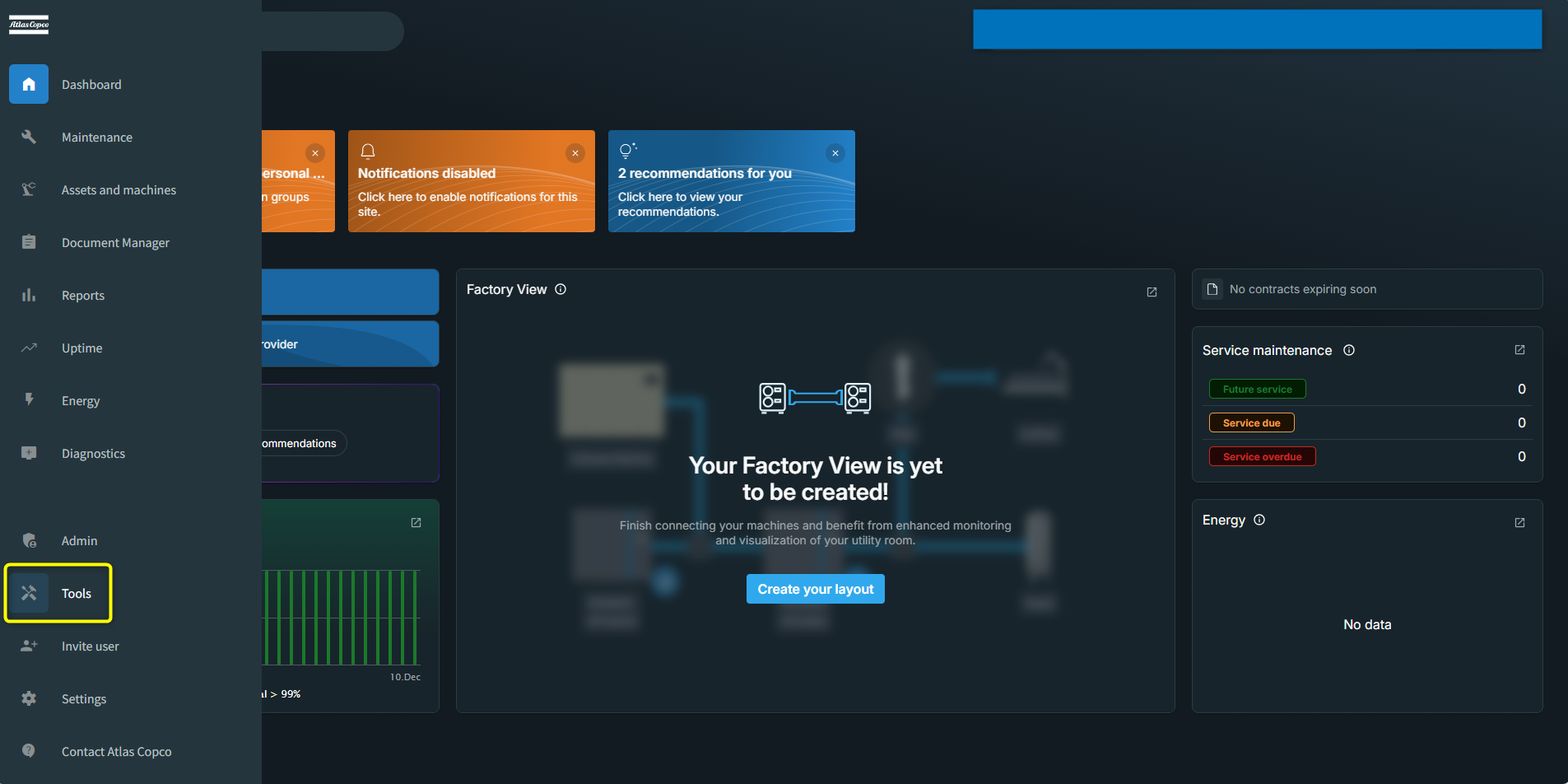
After clicking on TOOLS, a new window appears. In this window, third tab is dedicated to Fleet Management and is named so.
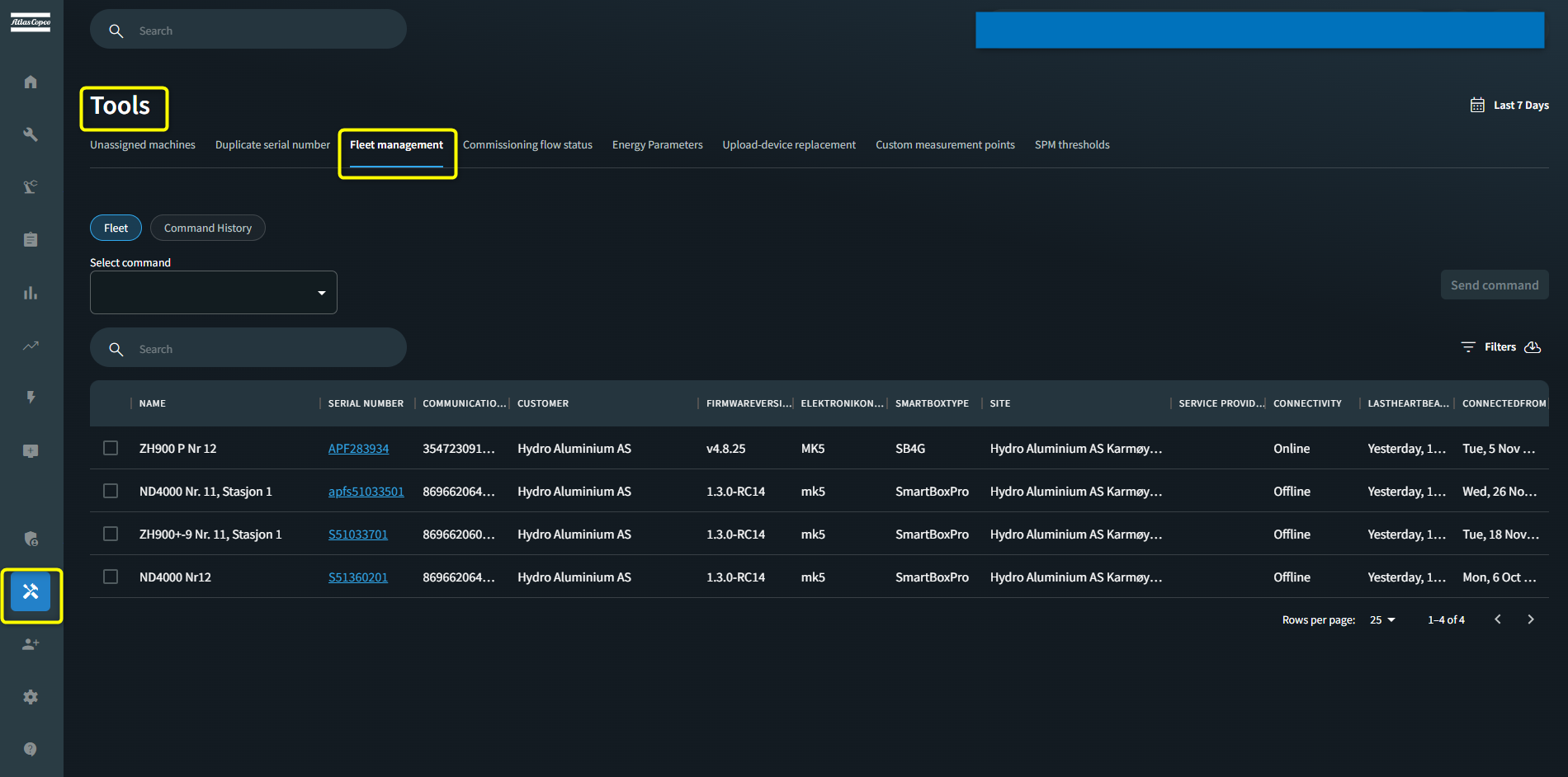
There are two sections in Fleet Management tab:
i. Fleet
ii. Command History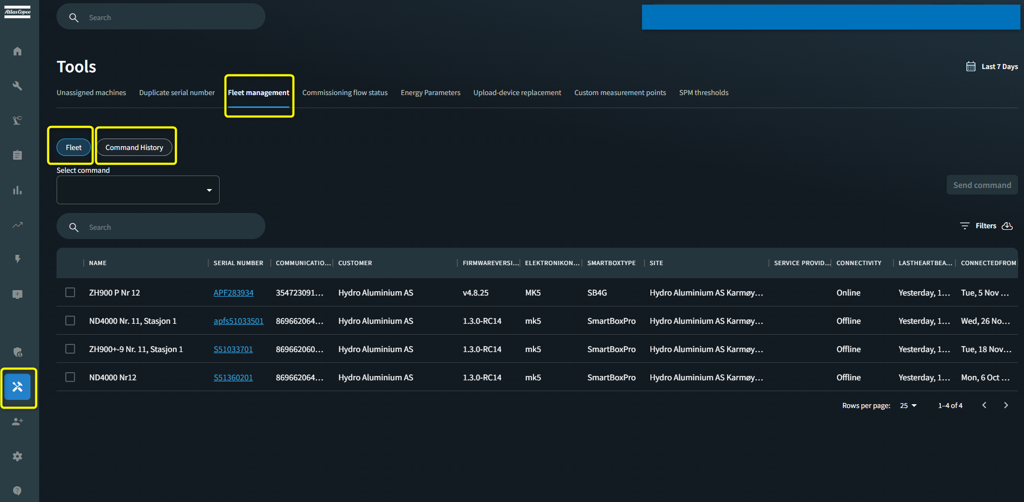
Let’s take a closer look at both sections:
1. FLEET:
In this section you have an option to select a command. Once you select a command,
the applicable machines for that command will be shown with a checkbox.
You can click on the machine where you wish to perform the action and the click on
‘Send Command’ tab to start execution.
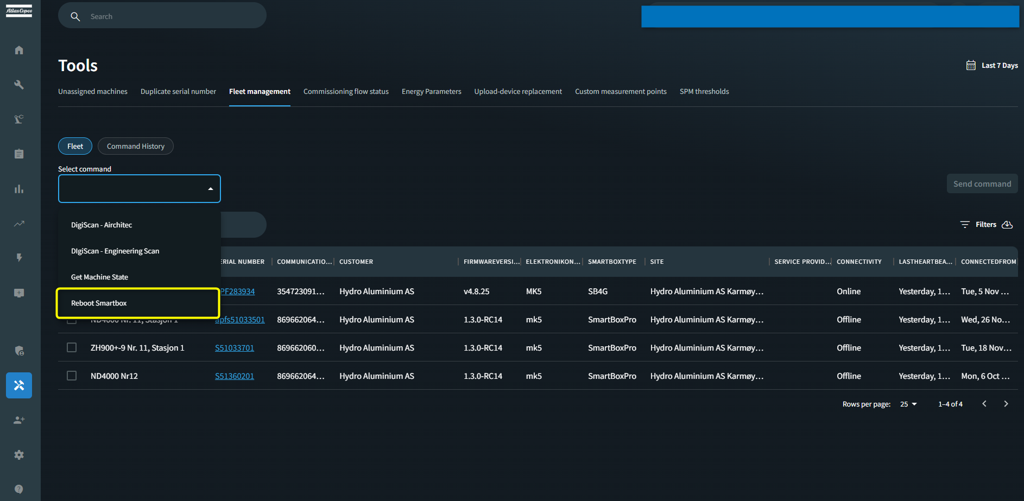
The Fleet Commands are found in “Select Command” drop-down menu. 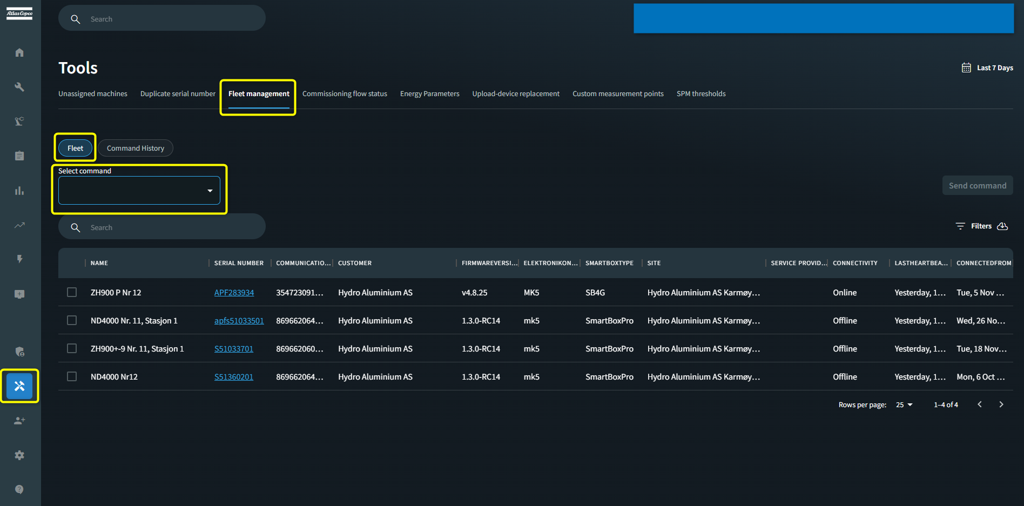
The Fleet Commands are as follows:
a) DigiScan- Airchitec
b) DigiScan- Engineering Scan
c) Get Machine State
d) Reboot Smartbox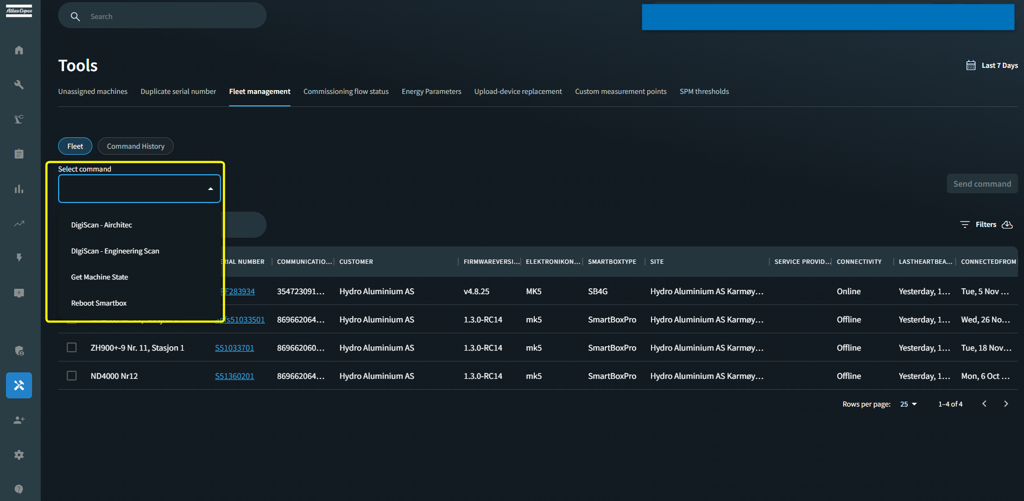
These commands are explained in detail below:
i. DigiScan- Airchitec:
This command is used to activate the Airchitec mode for the machine. It cannot be used on offline machines and can be used on the Smartboxtype SB4G. 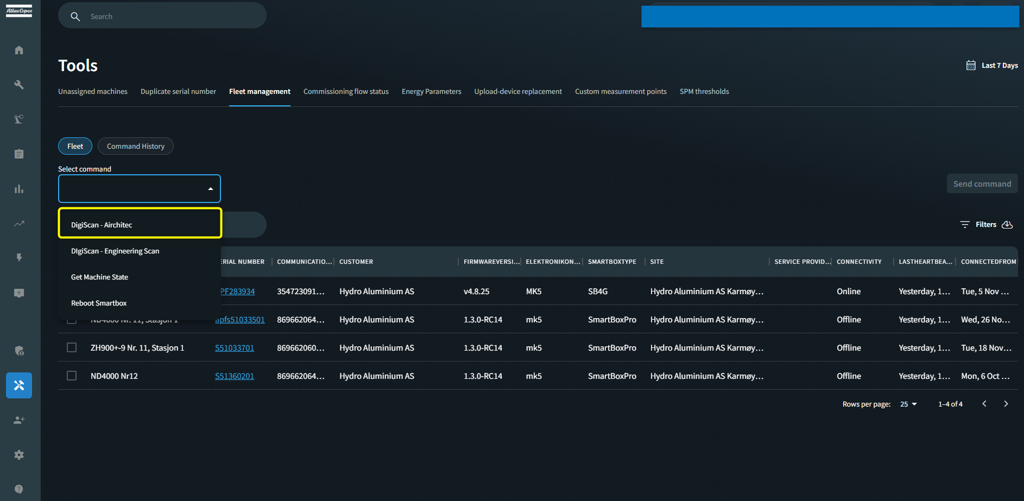
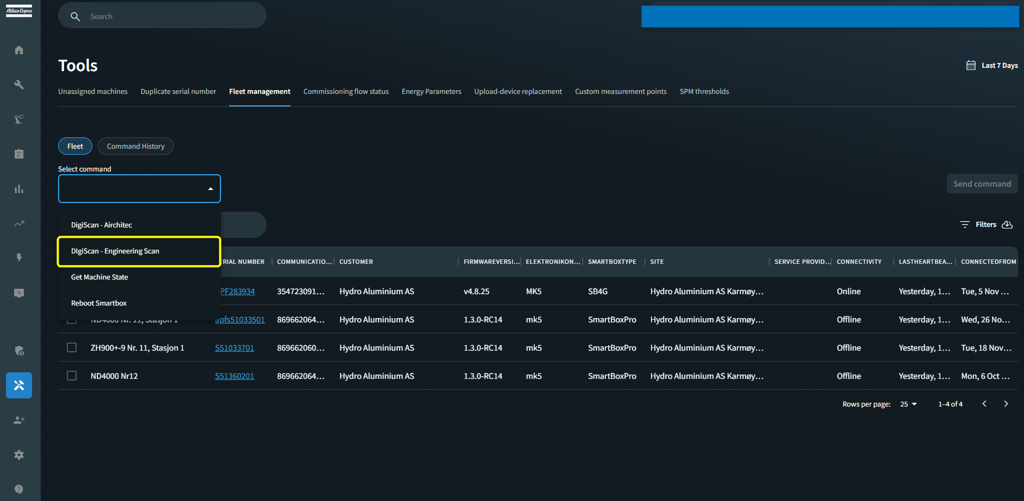
ii. DigiScan- Engineering Scan:
This command is used to activate the Engineering mode for the machine. For some issues with machines, it helps to collect a lot of data for analysis. By activating the engineering scan, the machine will remain in an enhanced high data mode for 7 days. Instead of sending data every 5 minutes, the machine will send data every 5 seconds.
To avoid misuse, it is only possible to select one machine at the time. Also, keep in mind that there is a cost involved when requesting so much data. These costs will be invoiced to your customer centre by the end of the month.
How to confirm the scan has been activated?
There are two ways to do so:
a) Smartbox Stable Mode:
One method is to check the machine details. The fastest way to get here is by typing the serial number in the Search for Anything field. Unfold the general tab of the MACHINE DETAILS and check the Smartbox Stable Mode. Next to High Data it should read Engineering Scan.
Note: this only applies when the firmware version v4 or above. For example, a device with firmware version v3.5.14 will not show this information here.
b) Review incoming data:
The second way to verify whether the command was executed successfully is by reviewing the incoming data. In trend graphs or when exporting measurement points, you will notice an increase in the number of values that are being registered. When reviewing trend graphs, make sure to enable raw data in the trend graph settings.
iii. Get Machine State: This command will return the latest state of the machine.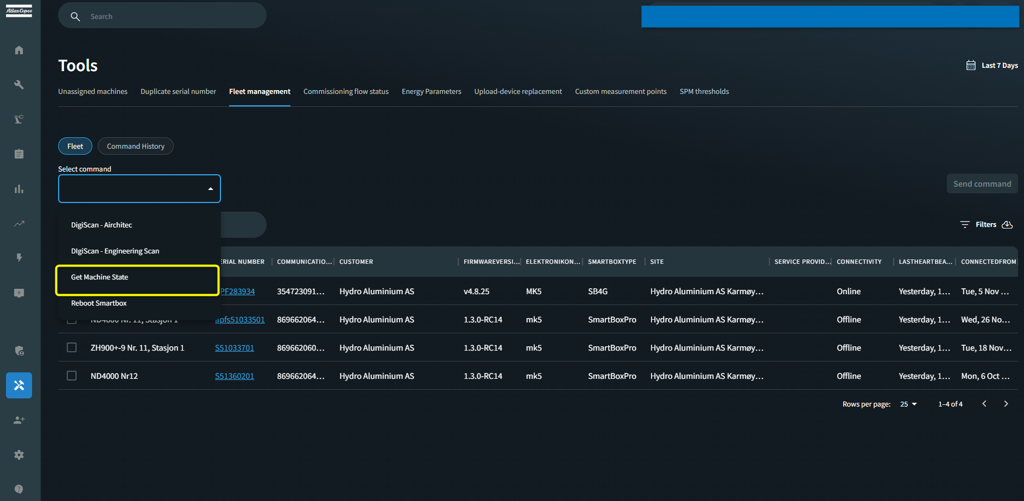
iv. Reboot Smartbox: As the name suggests, it is used to reboot the Smartbox. This command can be used on every machine with every Smartbox type.
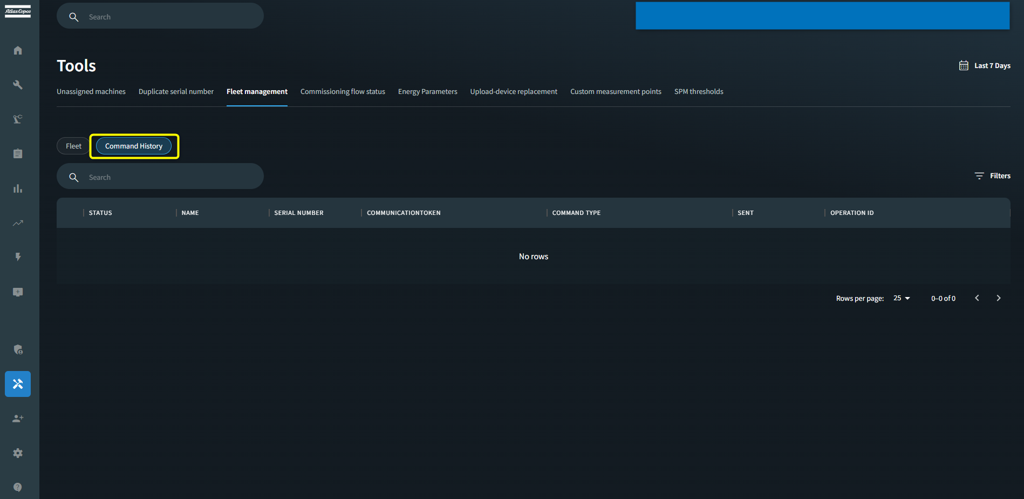
2. Command History:
The second section in fleet management is Command History, where you can verify the status of the commands sent from Smartlink. In many cases, commands take more time to get executed, you can check the status for the same in this tab.